Self-host an ebook library with kobo and library integration
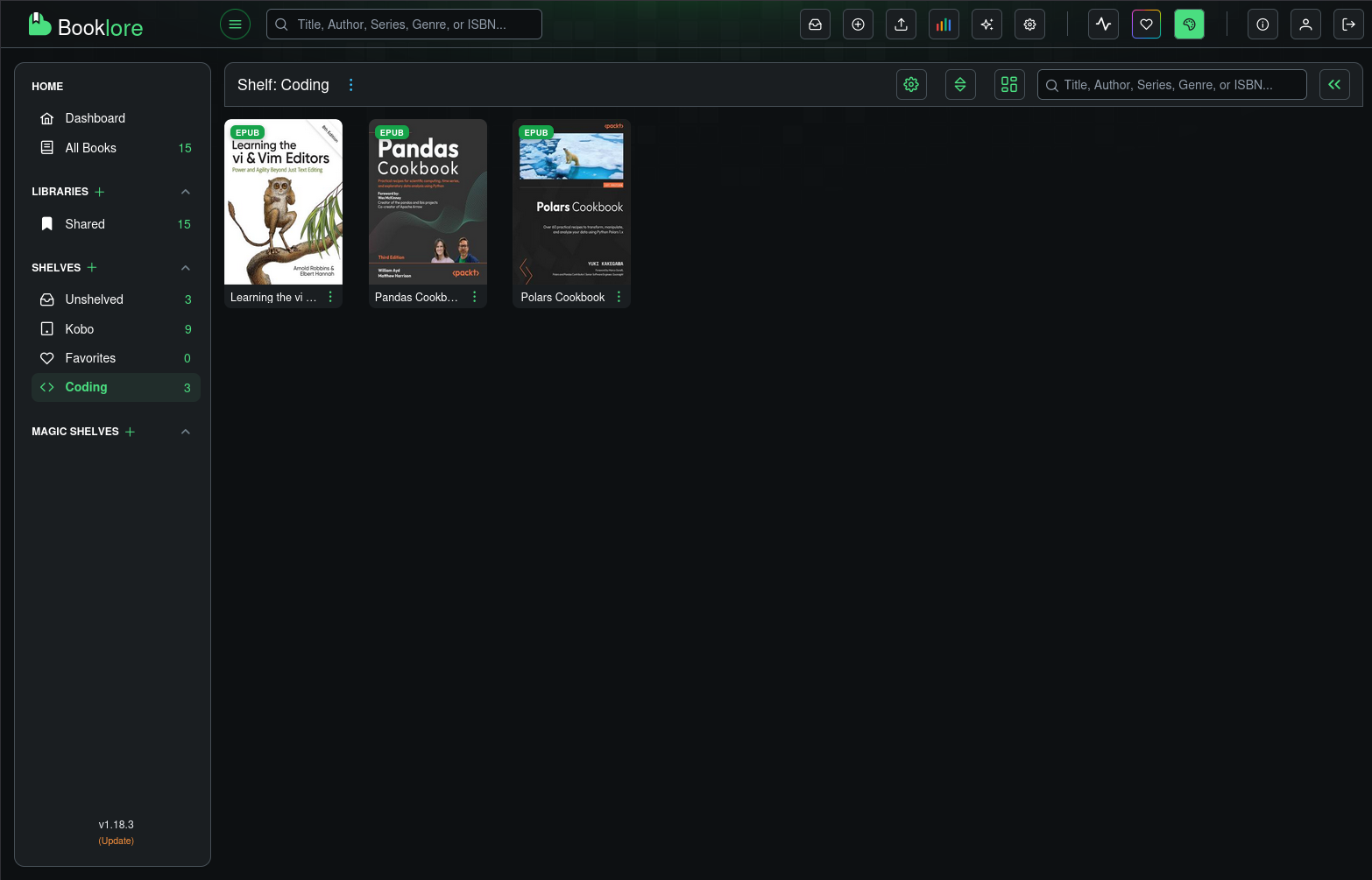
Self-hosting an e-book library was always on my radar, but there never seemed to be a solution that checked all the boxes. Mainly, I wanted the ability to read books from my Kobo (not sure if they are only a Canadian thing, they are similar to a Kindle in many ways), and be able to still borrow books from the library. Booklore seemed to accomplish all of this. While Booklore doesn’t have a cloud offering, it is super easy to get setup on a spare computer or VPS. You can also get it through pikapods if you want the benefits of self-hosting without having to have a machine ready to go.
Setup
Booklore can be setup through Docker. I’ll outline a docker compose setup here, which you can then use to get setup from a single file once you have docker installed. There are 4 main steps to getting everything working:
- Create the required directories (you don’t have to use
~/booklore, use whichever location you prefer.
mkdir -p ~/booklore/mariadb/config
mkdir -p ~/booklore/data
mkdir -p ~/booklore/books
mkdir -p ~/booklore/bookdrop- Create an
.envfile. This is where you store the configuration details for the database. The two variables you may wish to change are the timezone or the port.
APP_USER_ID=0
APP_GROUP_ID=0
TZ=Etc/UTC
BOOKLORE_PORT=6060

# Database Connection (BookLore)
DATABASE_URL=jdbc:mariadb://mariadb:3306/booklore
DB_USER=booklore
DB_PASSWORD=CHANGE_ME

# MariaDB Container Settings
DB_USER_ID=1000
DB_GROUP_ID=1000
MYSQL_ROOT_PASSWORD=CHANGE_ME_AS_WELL
MYSQL_DATABASE=booklore- Create the
compose.ymlfile
services:
  booklore:
    image: booklore/booklore:latest
    container_name: booklore
    environment:
      - USER_ID=${APP_USER_ID}
      - GROUP_ID=${APP_GROUP_ID}
      - TZ=${TZ}
      - DATABASE_URL=${DATABASE_URL}
      - DATABASE_USERNAME=${DB_USER}
      - DATABASE_PASSWORD=${DB_PASSWORD}
      - BOOKLORE_PORT=${BOOKLORE_PORT}
    depends_on:
      mariadb:
        condition: service_healthy
    ports:
      - "${BOOKLORE_PORT}:${BOOKLORE_PORT}"
    volumes:
      - ./data:/app/data
      - ./books:/books
      - ./bookdrop:/bookdrop
    restart: unless-stopped

  mariadb:
    image: lscr.io/linuxserver/mariadb:11.4.5
    container_name: mariadb
    environment:
      - PUID=${DB_USER_ID}
      - PGID=${DB_GROUP_ID}
      - TZ=${TZ}
      - MYSQL_ROOT_PASSWORD=${MYSQL_ROOT_PASSWORD}
      - MYSQL_DATABASE=${MYSQL_DATABASE}
      - MYSQL_USER=${DB_USER}
      - MYSQL_PASSWORD=${DB_PASSWORD}
    volumes:
      - ./mariadb/config:/config
    restart: unless-stopped
    healthcheck:
      test: [ "CMD", "mariadb-admin", "ping", "-h", "localhost" ]
      interval: 5s
      timeout: 5s
retries: 10-
Run
docker compose upand then head tohttp://localhost:6060. You should see the web interface, where you will setup the admin account upon first login. If you are running this on another computer on your local network, you should be able to go tohttp://{local_ip_address}:6060and see the interface as well -
(Optional): You may wish to run booklore behind a reverse-proxy. Booklore needs the following nginx configuration if you are looking to have Kobo integration. Otherwise, it is a pretty standard reverse-proxy where localhost:6060 is proxied out.
proxy_set_header Host $host;
proxy_set_header X-Real-IP $remote_addr;
proxy_set_header X-Forwarded-For $proxy_add_x_forwarded_for;
proxy_set_header X-Forwarded-Host $host;
proxy_set_header X-Forwarded-Proto $scheme;
proxy_set_header X-Forwarded-Port $server_port;

proxy_buffer_size 128k;
proxy_buffers 4 256k;
proxy_busy_buffers_size 256k;
large_client_header_buffers 8 32k;
Adding books
To add books to booklore, you add .epub files (must be DRM-free[1]) or .pdf files to the ./books directory. Then, Booklore will magically pick them up and add them to your unshelved collection. Note that you may need to use sudo to copy the files into the books directory if the books directory is owned by the application instead of your user.
Setting up Kobo integration
If you would like to read books housed in Booklore on your Kobo, there are just a few steps to get everything going:
-
Grab your kobo and plug it into your computer via a USB cable. The Kobo device should ask if you want to connect to a computer, and your computer will ask if you would like to mount/add the device (similar to a USB stick). Click yes to both options.
-
You are looking for the following file
.kobo/Kobo/Kobo eReader.conf. This will be easy to find using the terminal. If you are using a graphical file explorer, just make sure that hidden files are shown. -
Look for the the following line:
api_endpoint=https://storeapi.kobo.comYou will replace it with:
api_endpoint=https://books.example.com/api/kobo/{api_token}Where books.example.com is either {local_ip_address}:6060 if you are setting this up over a local network, or the domain name of the Booklore instance if you are setting this up behind a reverse-proxy or in pikapods.
To get the API token, click on the settings icon in the top navigation bar, then go to Devices. Enable Kobo sync, and copy the API token provided.
You should now have a working web interface to read books from (which can be loaded on mobile as well if you would like to read from a tablet or phone), as well as the ability to read books from a Kobo e-reader. On the Kobo e-reader, the books will be downloaded when added, so you can still read them if you take the Kobo to a coffee shop that is outside of your home network. Syncing books works as before, select the sync icon on the kobo and it will pull in new books added to Booklore.
The library configuration (through OverDrive/Libby) should work out of the box, thanks to some great fixes in the latest release. You will be able to borrow and add books as normal, with returns happening automatically.
Cool extra tips
You can customize the font in the built-in reader to whatever your favourite font is. I really like Atkinson Hyperlegible (the font of this blog), because it has been specifically designed to be one of the easiest fonts to read.
Booklore can be a great way to share a collection amongst all members of your household. Everyone can have their own account, and you can toggle the permissions for different libraries for different users (great for households with kids!).
There are many places to get DRM-free books, including Nantucket Ebooks or Project Gutenburg. There are… other methods, but paying authors is important. ↩︎