Opening excel and csv files from the terminal
When working on data pipelines with python’s pandas or polars, you will often produce data artifacts for others to use, either as csv files or excel files. It can be a real hassle to exit the terminal to view these files. Two handy tools allow you to preview either the input or output files you are working with, right within the terminal. Both are written in rust, and are fast and lightweight. Additionally, they won’t lock up your file like excel, nor will they mess with your dates!
csvlens
Csvlens is a straightforward tool for viewing (but not editing) csv files. To install across any system with rust installed, simply use
cargo install csvlensThen, to view a file use the following command. If it is tab-delimited, use the -t flag.
csvlens example.csv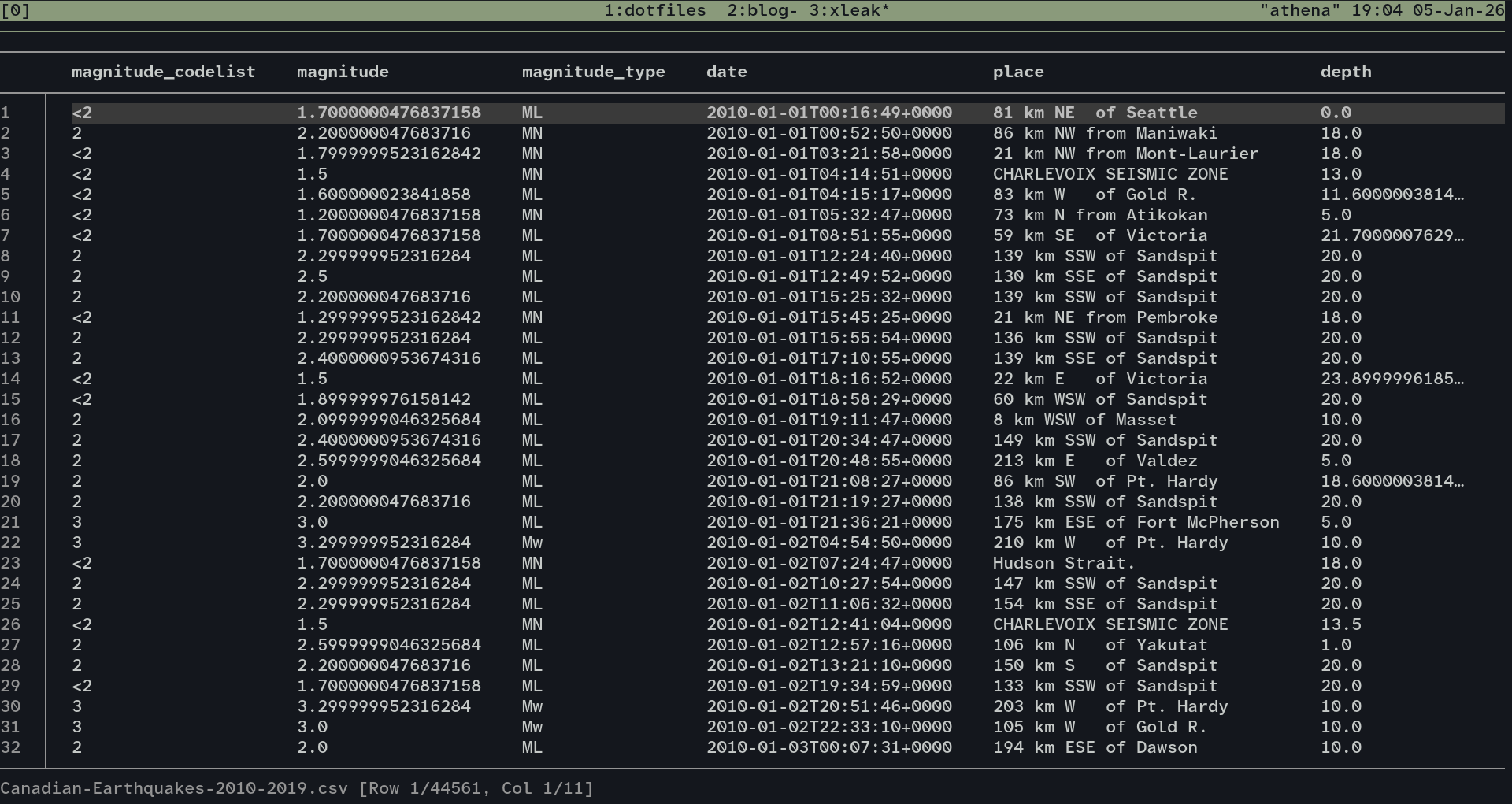
From here, either arrow motions or vim motions are supported for navigation. Searching is super easy with /, and so is sorting the file by a particular column (J). Lastly, filtering is done by selecting a column (TAB to move from row selection to column selection) and then typing & + the regex expression you want to filter for.
xleak
xleak allows you to view excel files in the terminal. To install it, you can again use cargo.
cargo install xleakTo view files, you will almost certainly want to use the -i flag for interactive mode. This is especially important for files with more rows or columns than will fit on a single terminal screen.
xleak example.xlsx -i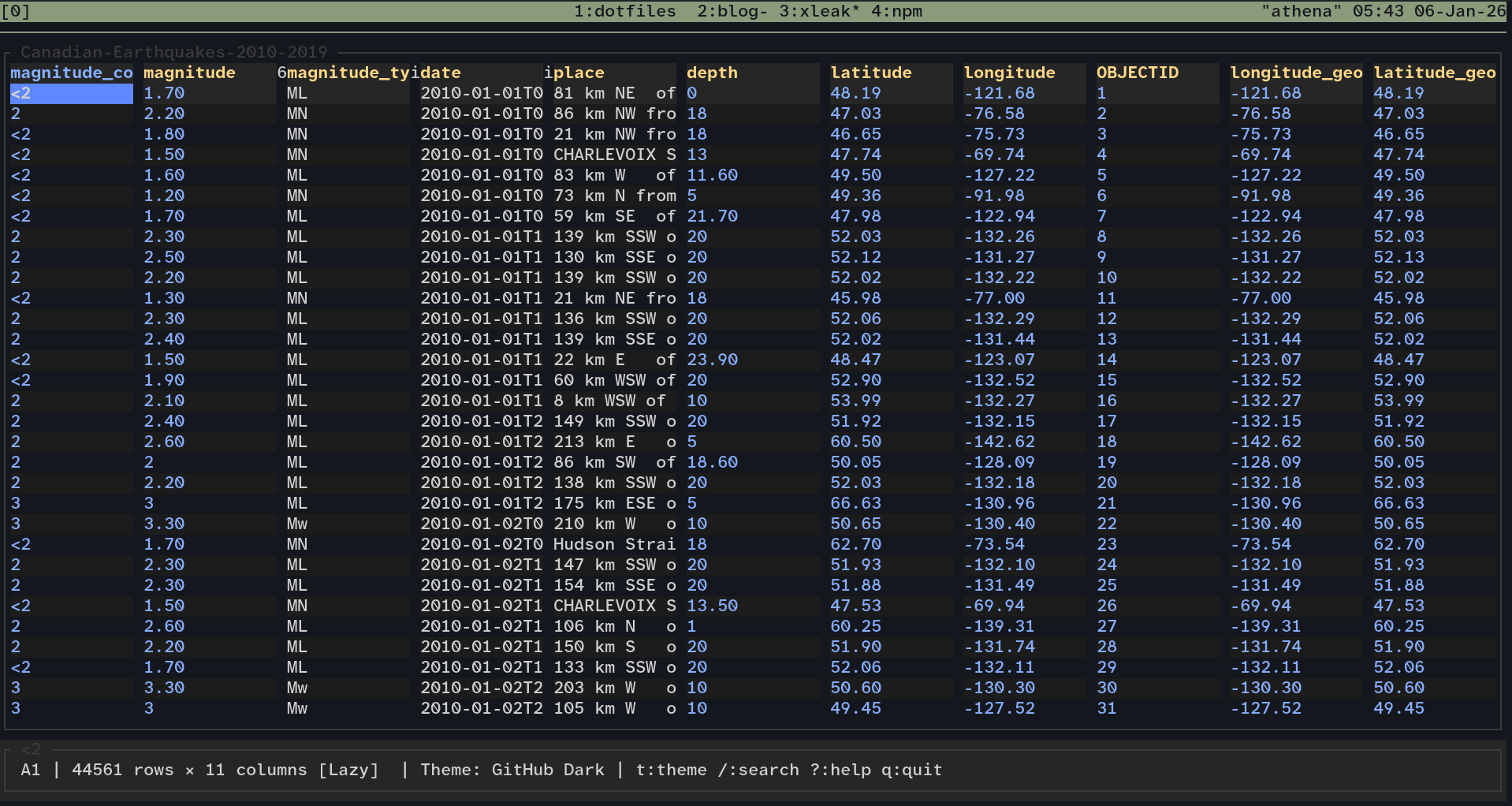
This tool is still quite fresh out of the kitchen, and so there are some bugs that I noticed during testing. First, for me the help key doesn’t work. Additionally, we can see that the text from the command is still visible (the 6 and i’s in the column name).
Configuring xleak
Unlike csvlens, there are some configuration options that you may want to set with xleak. The configuration lives in ~/.config/xleak/config.toml on Linux, ~/Library/Application Support/xleak/config.toml on Mac, and %APPDATA%\xleak\config.toml on Windows.
Here is the configuration file I use to set a different default colour scheme, and to enable the vim profile. A full configuration example can be found in the github repository
[ui]
max_rows = 50
column_width = 30

[theme]
default = "Github Dark"

[keybindings]
profile = "vim"
Fortunately, many of the keybindings are the same between the two tools, and you can customize xleak further through the configuration file so that they are almost identical. Support for csv files is being considered for xleak, which may mean that one tool could handle both filetypes in the future.
I would like to end with a shoutout to terminaltrove which is how I found both of these tools. Adding their new tools of the week to your RSS feed can be a fun way to discover new tools as they are developed.
The dataset shown in this post is the Canadian Earthquakes 2010-2019 Dataset. This dataset is derived from Natural Resources Canada earthquake data licensed under the Open Government Licence – Canada (OGL‑Canada). Contains information licensed under the Open Government Licence – Canada. All users must comply with the OGL‑Canada terms.